Use cases · iPhone or iPad as Your Mac's Teleprompter Screen
Your iPhone or iPad as Your Mac's Teleprompter Screen
Avocado on your Mac can show the script on any phone or tablet on your Wi-Fi, in sync, with no app, account or pairing. Open a link in Safari and you're reading. Want the teleprompter app on the iPhone itself? That's Avocado for iPhone.
Why it works for iPhone or iPad as Your Mac's Teleprompter Screen. Four things you get the moment you open it.
Invisible on iPhone or iPad as Your Mac's Teleprompter Screen
Left out of every screen share, recording and screenshot, whatever you share.
Right under the camera
Notch Mode puts the words where your eyes should be, so you read toward the lens.
Scrolls with your voice
Speak and it moves. Pause and it waits. No clicker, no second person.
Private and on-device
Speech recognition and the AI features run on your Mac, and it works offline.
In detail
Avocado for iPhone or iPad as Your Mac's Teleprompter Screen
Looking for a teleprompter app that runs on the iPhone itself, recording you with the script right under the front camera and no Mac involved? That's Avocado for iPhone and iPad, free on the App Store. This page is about the other setup: your Mac runs the show, and a phone or tablet is the screen you read from.
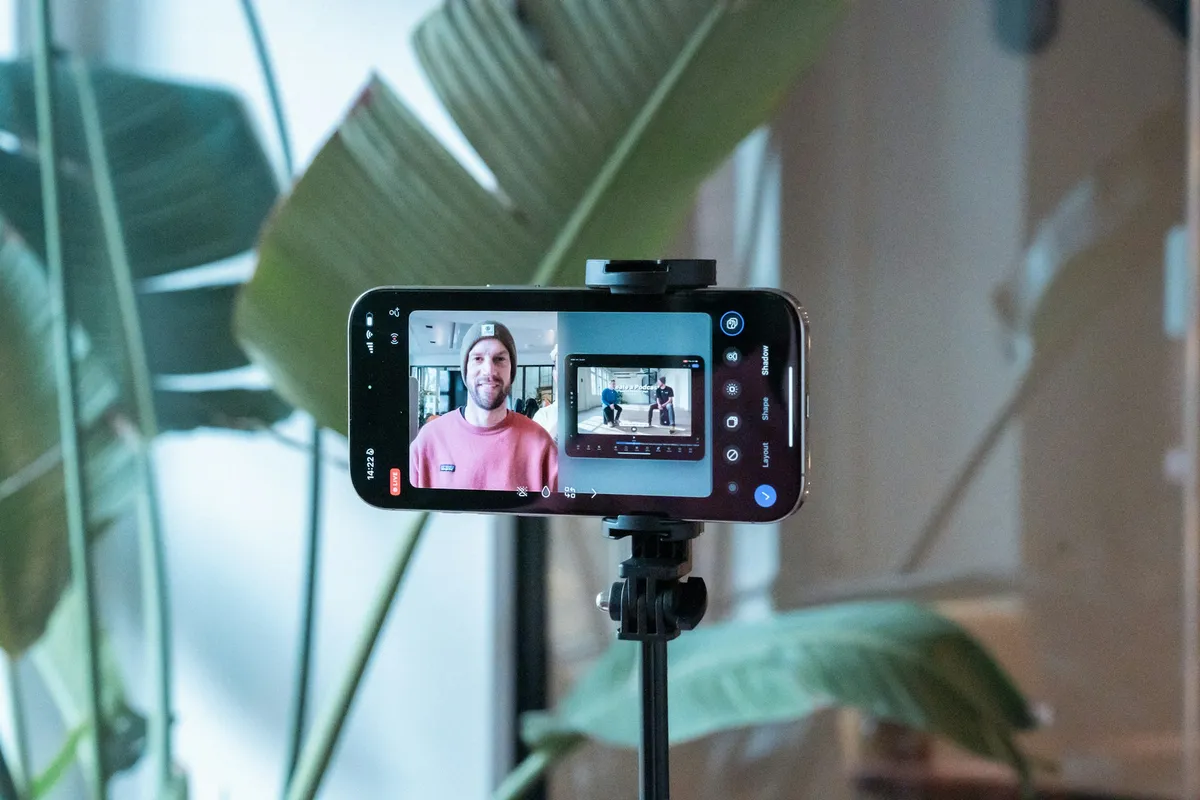
Most teleprompter setups that involve a second screen require installing an app on every device, creating accounts, and pairing hardware. Avocado works differently. When you enable Director Mode on your Mac, it spins up a local web server and generates a URL for the Teleprompter Viewer. Any phone, tablet, or laptop on the same Wi-Fi network can open that URL in their browser — Safari, Chrome, Firefox — and instantly see a fully synced teleprompter display. No App Store download. No account. No pairing step. Just a URL.
The browser viewer mirrors the Mac app exactly. Font size, text color, background color, text alignment, and Smart Cue markers all render identically on the phone screen. Script edits, delivery cue toggles, and alignment changes push to the viewer instantly over WebSocket — you don't need to refresh the page. Smooth scrolling uses velocity estimation so the phone display moves fluidly rather than snapping every broadcast tick. When the prompter isn't running on the Mac, the viewer shows a holding screen with the Avocado icon; it disappears automatically when the Mac starts.
The most common setup is placing the phone or tablet on a stand close to the camera lens — Floating Mode on the Mac controls the script while the phone serves as the reading surface near the lens. This gives you a larger, dedicated display without a second monitor, and you can position it wherever your eye level is. For hardware rig users, the viewer's gear menu includes its own mirror toggle so the phone can be placed face-down in a beam-splitter mount independently of the Mac setting.
Because this is served over your local network — not the internet — your script never leaves your home or studio. No cloud relay, no latency from a server, no internet dependency. The viewer connects directly to the Mac over Wi-Fi.
Choosing between the two? Use the viewer when the Mac is already part of the shoot, say a producer runs the script from it in Director Mode. Use the iPhone app when the phone is the camera, or when you want the script on an iPad on a stand or in a glass rig with no Mac nearby. Here's how the app compares with other teleprompter apps for iPhone and iPad.
Questions about Avocado for iPhone or iPad as Your Mac's Teleprompter Screen.
Yes — Avocado's Teleprompter Viewer is a webpage served directly from your Mac over Wi-Fi. Open the URL in Safari on your iPhone and it displays a fully synced teleprompter with no App Store download, no account, and no pairing required. Font size, colors, and smart cue markers all match the Mac app in real time.
Enable Director Mode in Avocado on your Mac — it generates a QR code for the Teleprompter Viewer. Scan it with your iPad's camera to open the viewer URL in Safari. Your iPad instantly shows a live, synced teleprompter display that updates as you edit the script or change settings on the Mac.
Yes — the viewer is designed for iOS Safari. It detects iOS automatically and shows instructions to set Auto-Lock to Never so your screen stays on during a take, since Safari on local HTTP can't use the Screen Wake Lock API. The display, scrolling, and settings sync all work correctly in Safari without any special configuration.
The viewer is served entirely over your local Wi-Fi network — there is no internet relay and no cloud server involved. Your script and session data never leave your home or studio. The Mac acts as the server and the phone connects directly to it, with no third-party infrastructure in the path.
More ways people use it.
All use cases →

Your next take starts under the lens.
Free for Mac. No account, no card.