1. True Screen-Share Invisibility
A core promise of Avocado is that your audience will never know you are using a teleprompter. While many web-based or traditional teleprompters try to hide by turning down transparency or moving outside capture windows, Avocado utilizes deep native macOS APIs.
How the Invisibility Layer Functions
Avocado renders underneath the system screen-recording capture layer. By communicating directly with the macOS WindowServer architecture, we instruct the operating system to explicitly exclude the Avocado window from any visual output generated for screen sharing, recording, or screenshots.
This means whether you are sharing your entire desktop on Zoom, Microsoft Teams, Google Meet, or Slack, the teleprompter simply does not exist in the video feed. Your audience sees your clean desktop or presentation slides exactly as intended, while you retain crystal-clear visibility of your script.
Why this matters to you:
- •No more anxiety about accidentally broadcasting your script during a high-stakes meeting.
- •Works with full-screen sharing: You don't have to awkwardly share "just a portion" of your screen. Share the whole Desktop safely.
- •Screenshot proof: Even if you hit the native macOS screenshot shortcut, the prompter will not appear in the resulting image.
2. Private, On-Device Voice Tracking
Reading at a fixed, robotic scroll speed leads to unnatural, rigid presentations. Avocado solves this with our intelligent Voice-Activated Scrolling.
The Power of Apple Speech Recognition
Instead of routing your sensitive audio to a cloud server (which introduces latency, lag, and privacy risks), Avocado heavily leverages Apple's native SFSpeechRecognizer framework. Thanks to the advanced Neural Engine in Apple Silicon (M1, M2, M3, M4 chips), all vocal processing happens locally on your Mac.
As you speak, Avocado listens and securely cross-references your spoken words with your script. The algorithm calculates your exact pace and smoothly advances the text to match your natural speaking rhythm. If you pause for a breath, the scrolling pauses. If you speed up to emphasize a point, the prompter keeps up seamlessly.
Why this matters to you:
- •100% Privacy: Your voice data, scripts, and trade secrets never leave your device. All speech processing happens entirely on-device — no audio or content is ever sent to a cloud server.
- •Zero Latency: Because it requires no internet connection or server handshakes, voice tracking is practically instantaneous.
- •No Subscription Taxes: Other apps charge hefty monthly fees to cover API server costs. Because we use your Mac's built-in processing power, voice tracking is included forever for a one-time fee.
3. Guide: Setting Up the Perfect Remote Presentation
Even with the best teleprompter software, your physical positioning and workflow dictate how natural you appear on camera. Follow this step-by-step guide to achieve the optimal "eye-contact illusion."
- 1
Dock to the Notch for Eye Contact
Drag the Avocado window directly underneath your Mac's camera (or the iPhone Continuity camera). By keeping the text tightly aligned to the top-center edge, your eyes naturally appear to lock directly onto the webcam lens. You aren't reading off to the side, maintaining engagement with your audience.
- 2
Enable the Focus Guide
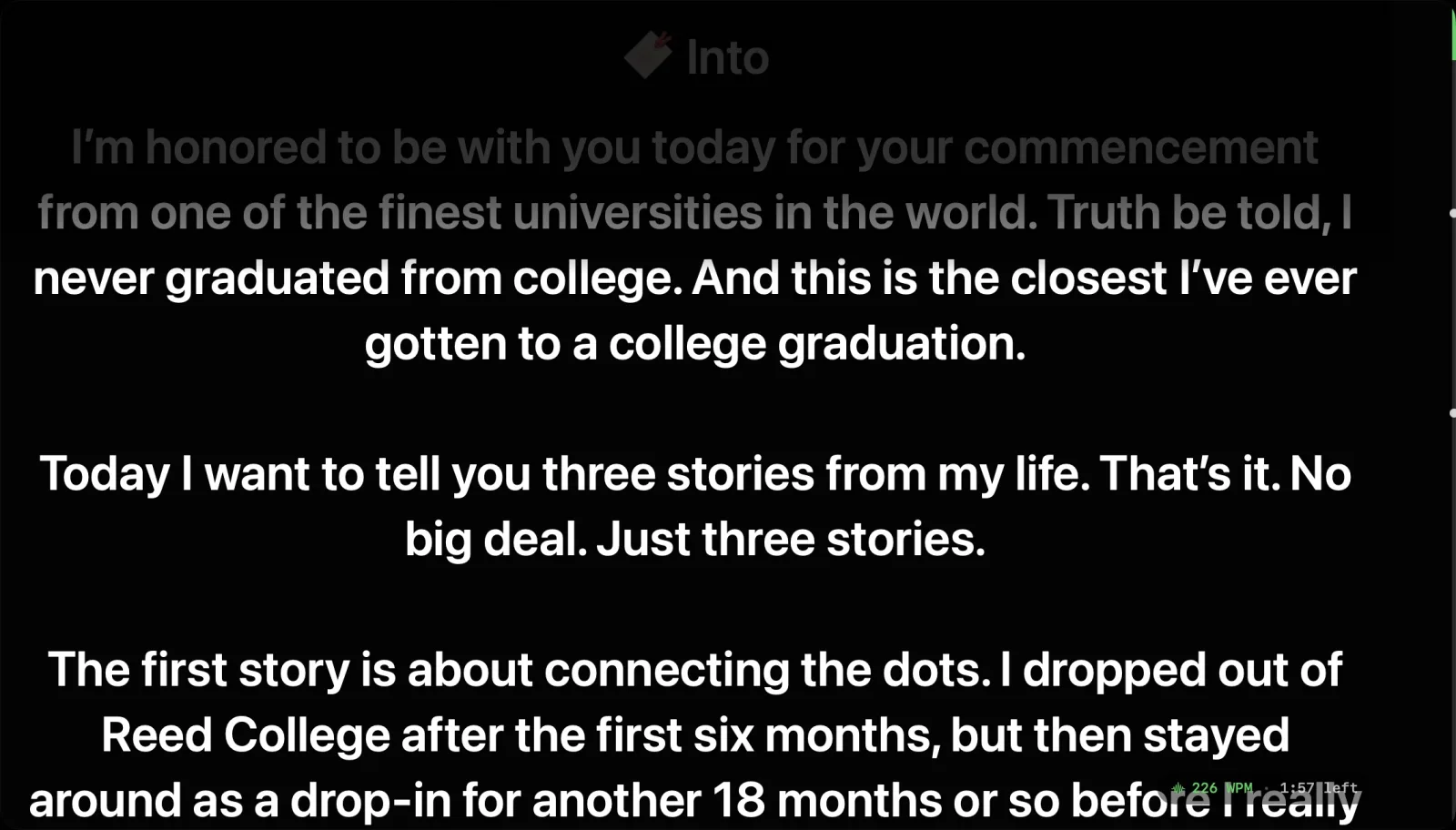
Avocado includes a powerful feature called "Focus Guide." When enabled, the app automatically dims the lines of text you have already read. This acts as a visual anchor, ensuring that if you quickly look away to answer a question or check an audience reaction, your eyes map instantly back to the brightly lit, active line when you return.
- 3
Hide UI Controls for Distraction-Free Reading
Once your script is ready and scrolling, check the "Hide Controls During Playback" option in settings. This strips away all buttons, scrollbars, and progress metrics, leaving only smooth, translucent text hovering intelligently over your screen.
- 4
Navigate with Magic Mouse / Touchpad
During a live Q&A or dynamic presentation, you may need to suddenly skip ahead or jump back to reiterate a point. Using Apple's native scrolling APIs, Avocado allows you to instantly flick your fingers on the trackpad or magic mouse to override the autoscroller without fumbling for keyboard shortcuts.
4. PowerPoint Notes Import
If your presentation lives in PowerPoint, you no longer need to manually copy-paste your speaker notes into Avocado. Drop a .pptx file directly into the app and Avocado instantly extracts every slide's presenter notes as a clean, ready-to-read script.
How It Works
Avocado reads the Open XML structure inside the .pptx container entirely on-device — no cloud upload, no third-party parsing. It pulls each slide's notes in order and assembles them into a single continuous script. Each slide boundary is automatically prepended with your custom Script Marker, so the sidebar table of contents maps one-to-one with your slide deck. Jump to any slide in seconds without scrolling through the full script.
Why this matters to you:
- •Zero prep overhead: Your PowerPoint already has your speaker notes — no reformatting or re-typing required.
- •Instant slide navigation: Auto-generated Script Markers let you jump directly to any slide from the sidebar mid-presentation.
- •Fully private: The file is parsed locally. Your deck never touches a server.
5. Follow Mouse (Pro)
Multi-monitor workflows are common for presenters — one screen for slides, another for video call controls, a third for notes. Avocado Pro's Follow Mouse mode removes the friction of manually dragging the prompter window between displays.
How It Works
When Follow Mouse is enabled, Avocado continuously monitors which display your cursor is on. The moment your mouse crosses into a new screen, Avocado leaps to that display and repositions itself — anchoring to the notch if available, or floating in its last-used position on that monitor. No dragging, no keyboard shortcut needed.
Why this matters to you:
- •Seamless multi-monitor presenting: Switch between your slide deck display and your video call display without losing your script.
- •No interruptions: Avocado stays out of your way until you need it, then jumps exactly where you are.
- •Works with any configuration: Two monitors, three monitors, or a mix of built-in and external displays.
6. Director Mode (Pro)
Director Mode turns Avocado into a remotely-controlled teleprompter. A producer, co-host, or assistant can control the prompter in real time from any phone, tablet, or laptop on the same Wi-Fi — no app to download, no account to create.
How It Works
When you enable Director Mode, Avocado starts a lightweight local web server and generates a unique session URL with a one-time cryptographic token. Share that URL with your director and they open it in any browser — that's it. From their device they can play, pause, scrub the scroll position, adjust speed, and jump between Script Markers, all in real time via WebSocket. The session token regenerates every time Director Mode is toggled on, so old links can never be reused. Up to 5 devices can connect simultaneously. No internet connection is required — everything stays on your local network.
Why this matters to you:
- •Zero setup for the director: They just open a URL — no app store, no login, no configuration.
- •Professional productions: Ideal for multi-camera shoots, live events, or any recording where the speaker and operator are in different seats.
- •Completely private: Traffic never leaves your local network — your script stays between you and your team.