The "Word-for-Word" Trap
One of the biggest mistakes beginners make with teleprompters is writing out exactly what they plan to say, down to the syllable. When people read full sentences, their eyes glaze over, their tone flattens, and audiences can instantly tell they aren’t speaking from the heart.
Bullet-Point Prompting
A better way is Bullet-Point Prompting. Instead of a full script, you just put the heavy-hitting concepts into the prompter. When you look at the prompter, it just acts as an anchor to keep your tangents in check, but you provide the words naturally on the fly.
Script Markers in Avocado are perfect for this.
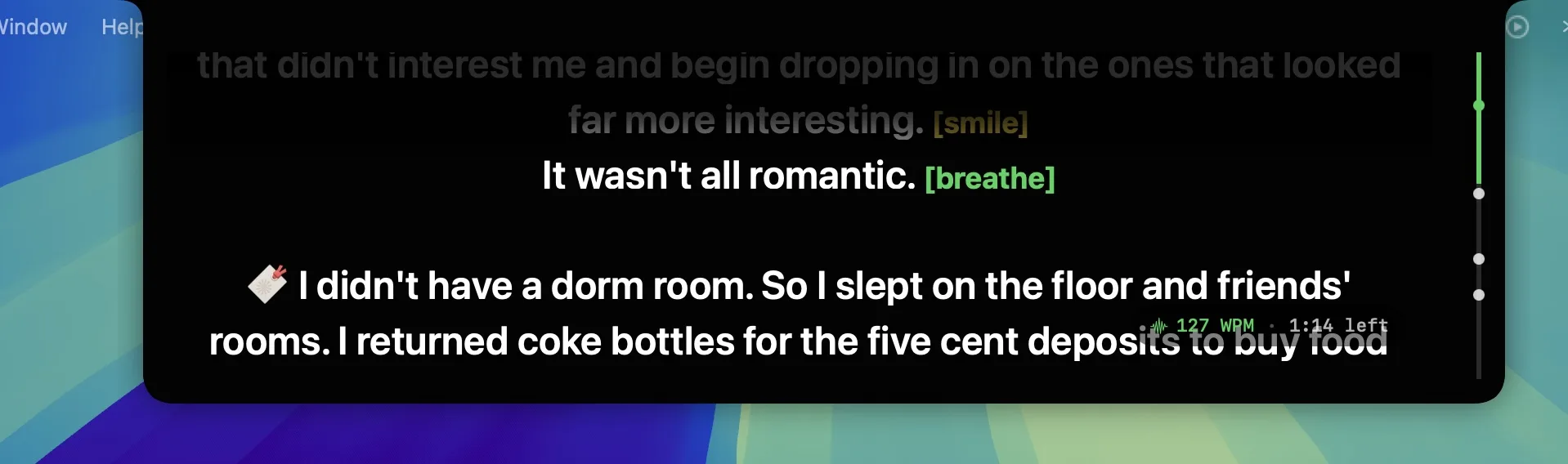
How to structure it:
Use markers to highlight the main subject bullet point, and leave standard text for the supporting facts and data points.
### Introduction: Who am I?- (Just talk naturally about yourself)
### State the Problem- Data point: 70% of viewers drop off in the first 10 seconds.
### The Solution
When you look up at the prompter, that bright blue marker acts as a stark cue: "Okay, now I need to transition to the Problem." It’s an incredibly potent way to stay organized while retaining your natural charm and cadence.
Sound Like Yourself on Camera
The goal of any teleprompter should be to disappear. Your audience should feel like you’re talking to them directly—not reading at them. Bullet-point prompting with Script Markers gets you there faster than any other method. Try rewriting your next video outline as a series of markers and see how much more natural your delivery feels on the first take.