The Operator Problem in Solo Recording
Most people who use a teleprompter are also operating it — adjusting the speed mid-read, pausing when they stumble, scrubbing back when a take falls apart. That's a lot of simultaneous attention: deliver the script, watch your pacing, manage the technical controls. The self-operated teleprompter solves the reading problem while introducing a new one.
In professional broadcast, this is why there's a dedicated role: the teleprompter operator. Their only job is to watch the presenter, match the scroll to their speech, and make real-time adjustments. The presenter doesn't think about the controls at all. They just talk.
Director Mode brings that model to Avocado.
How Director Mode Works
When you enable Director Mode in Avocado Pro, the app starts a lightweight local server and generates a unique session URL with a one-time cryptographic token. You share that URL with whoever is running the prompter for you — your producer, a co-presenter, a colleague sitting across the room — and they open it in any browser on their phone, tablet, or laptop. No app to download. No account to create. Just a URL.
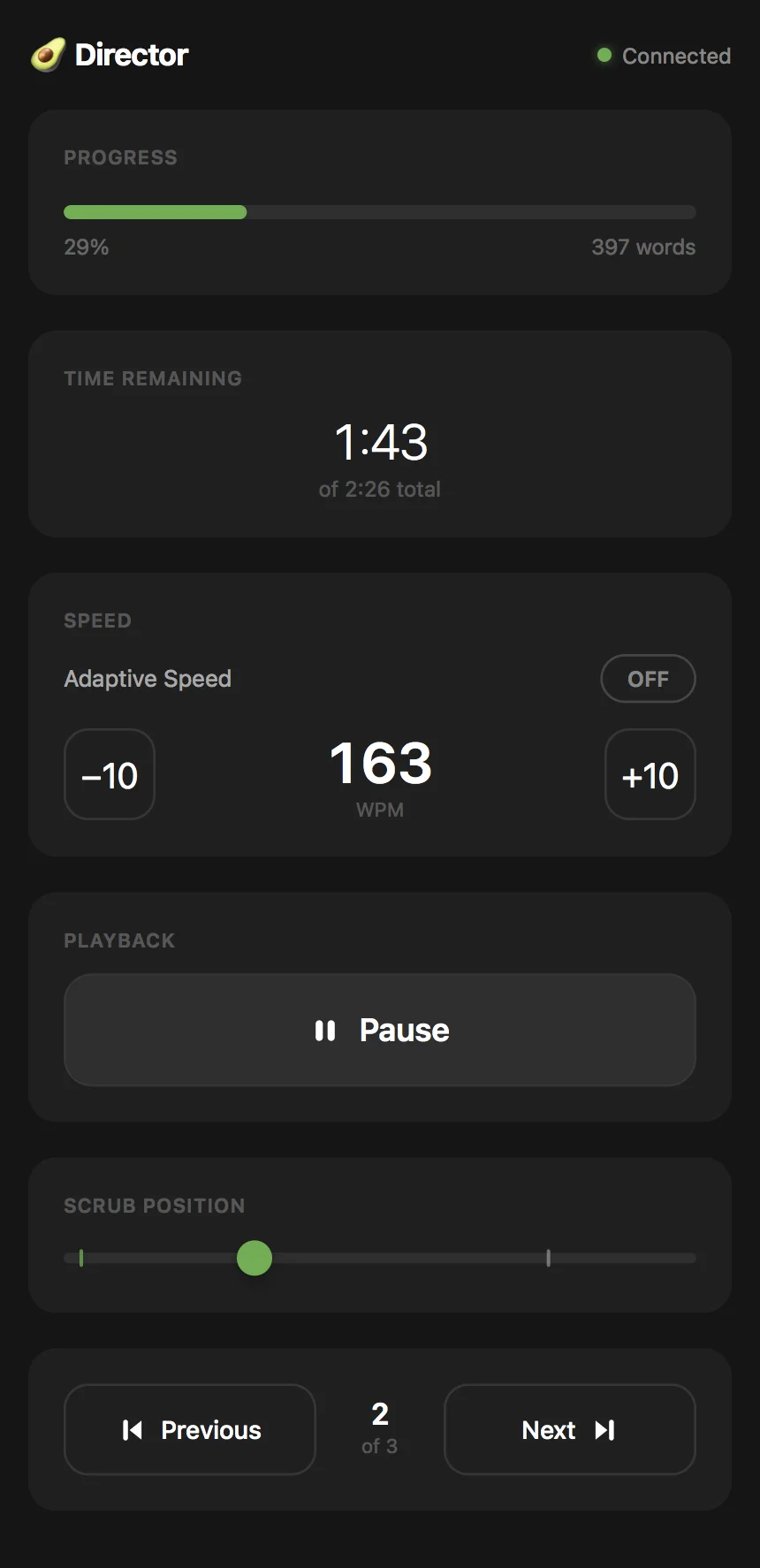
From their device, the director gets a dedicated control panel:
- Progress bar — shows what percentage of the script has been read and the total word count.
- Time remaining — a live countdown based on the current scroll speed.
- Speed controls — adjust WPM in increments of 10 in either direction, or toggle Adaptive Speed on and off.
- Play / Pause — full playback control with a single tap.
- Scrub position — a draggable slider to jump anywhere in the script instantly.
- Cue navigation — Previous / Next buttons that jump between Script Markers, with a count showing which marker you're on.
Everything syncs in real time over WebSocket. There's no perceptible lag. Up to 5 devices can connect simultaneously — useful for larger productions where multiple people need visibility on the prompter state.
What the Presenter Stops Thinking About
The value of a dedicated operator isn't just convenience — it's cognitive load. When you know someone else is watching the scroll and adjusting as needed, you stop monitoring it. Your attention goes entirely to delivery: the camera, the words, the energy. That shift is audible. Presentations controlled by a director tend to sound more natural, more confident, and more present than self-operated ones, even when the script is identical.
This is the same reason broadcast anchors don't operate their own prompters. It's not that they can't — it's that the split attention costs something, and that cost shows up in the final product.
Who This Is Built For
Director Mode is most useful when there's a clear separation between the presenter and the operator:
- Professional video shoots — a producer or video editor runs the prompter from a laptop while the speaker is on camera.
- Live event presentations — a stage manager controls the teleprompter from the wings while the presenter works the room.
- Remote recordings with a co-host — one person presents, the other manages the scroll and pacing from their own machine.
- Team content production — a content manager or editor drives the prompter for a subject-matter expert who just needs to deliver their knowledge on camera.
It also works well in smaller configurations: a spouse pausing the scroll from their phone when the doorbell rings, or a co-founder adjusting the speed during a pitch rehearsal.
Local Network, Full Privacy
All Director Mode traffic stays on your local network. Nothing goes to the internet, and nothing leaves your Wi-Fi. The session token is cryptographically generated and regenerates every time Director Mode is enabled, so previous connections can never reuse a link. Your script content is never transmitted to the director's device — only control signals travel over the connection.
Getting Started
Director Mode is a Pro feature in Avocado. Enable it from the settings panel, copy the generated URL, and send it to whoever is operating the session. They open it in any browser — Chrome, Safari, Firefox — on any device on the same Wi-Fi. That's the entire setup process.
If you've been self-operating and wondering why your delivery feels like it's carrying extra weight, this is likely part of the answer. Handing off the controls changes how you present. Try it once and it's hard to go back.